 ProtectMyMac

Backups, security, and peace of mind

ProtectMyMac brings backup confidence, macOS security signals, and storage insights together in one dashboard.
US$5.99 including applicable tax · One-time lifetime purchase
Launch offer: US$3.00 including applicable tax for the first 500 redemptions (50% off).
Select Add discount at checkout and enter KANWNDPIUP.
Downloadable macOS app. Supports macOS Sonoma (14) and later.
Terms of service · Privacy notice · Refund policy · Support
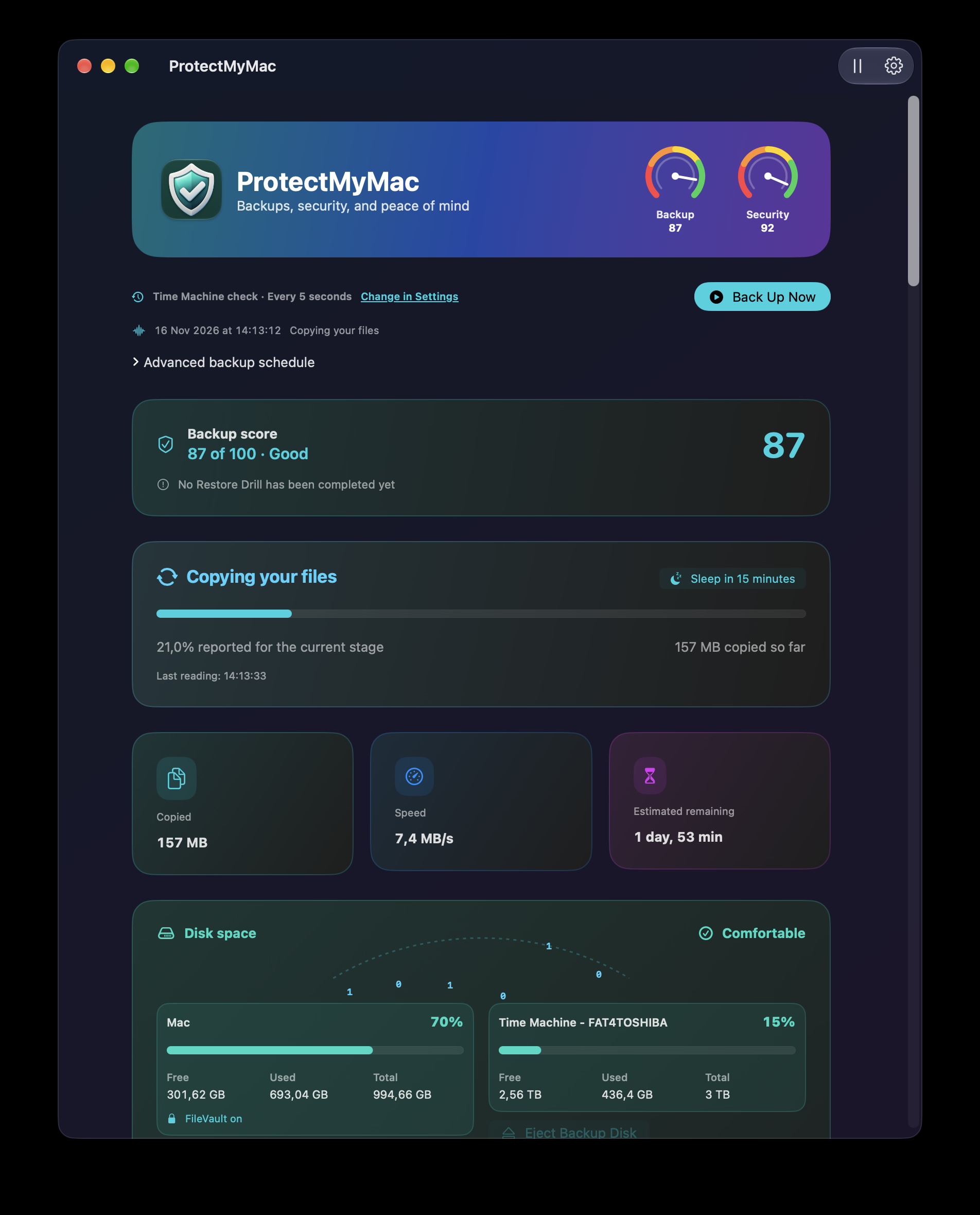
See what Time Machine is doing, understand which protections need your attention, and practise restoring a file before you need to recover something important.
Keep an eye on Time Machine
The dashboard shows whether Time Machine is preparing, copying, cleaning up, or waiting for the next backup. When macOS reports enough information, you can follow copied data, transfer speed, and estimated time remaining. Backup history records successful and failed backups observed while ProtectMyMac is running, with a chart to help you spot patterns.
Back Up Now asks Time Machine to start a backup. An advanced schedule can request backups at your chosen interval through a user LaunchAgent, while leaving macOS automatic backup settings unchanged. macOS decides when to honour those requests and can defer or skip them when a backup is already running. If you are stepping away, Sleep in 15 minutes schedules a one-time sleep that you can cancel from the status card.
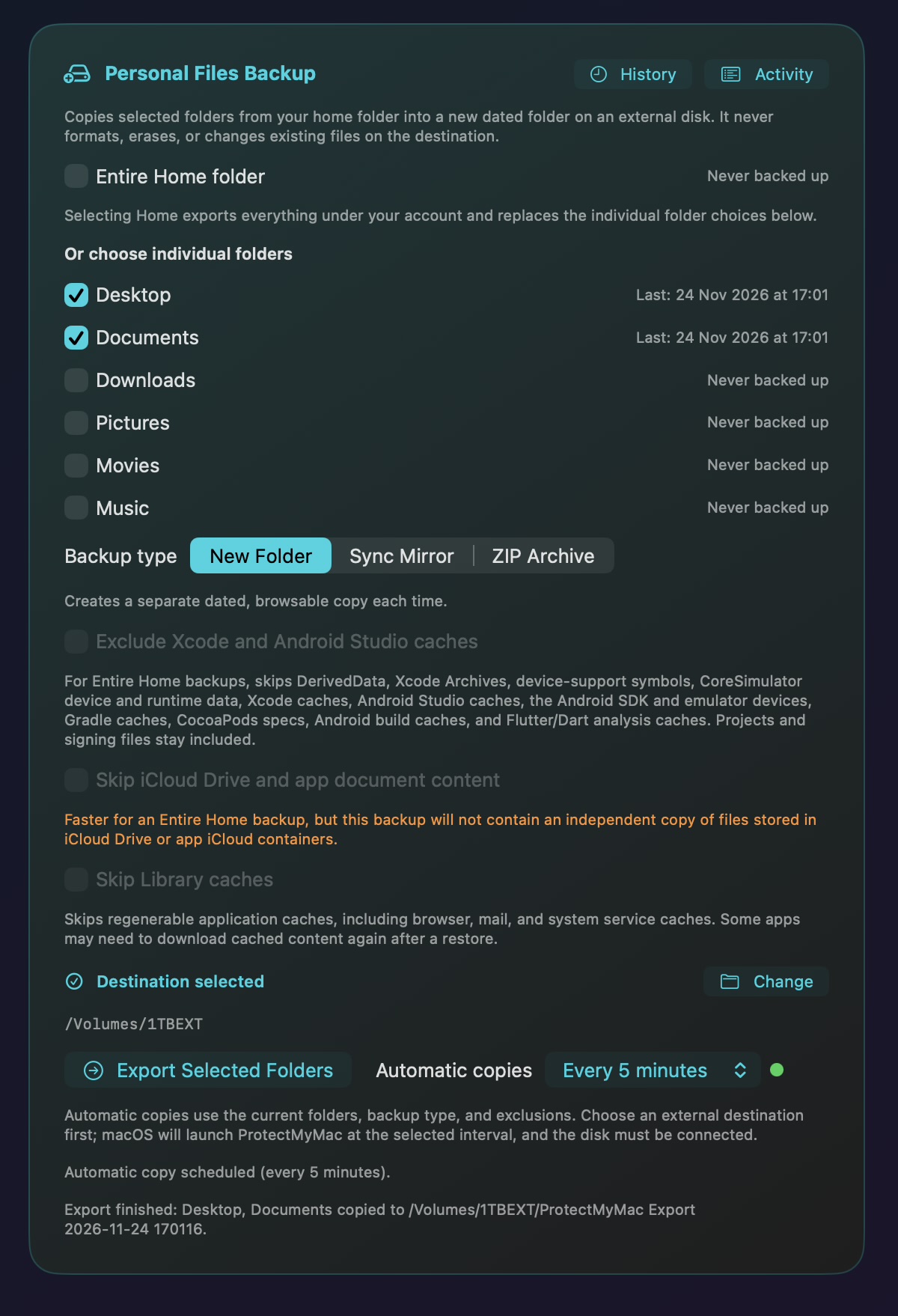
Personal Files Backup
Keep a separate copy of your personal files on an external disk. Choose your entire Home folder or select individual folders such as Desktop, Documents, Downloads, Pictures, Movies, and Music.
Choose New Folder for a dated, browsable copy, Sync Mirror to keep a mirror, or ZIP Archive for a compressed copy. Backup history shows when you last backed up each folder. For Entire Home backups, you can exclude developer and Library caches or skip iCloud Drive and app document content.
New in version 1.1: Scheduled Personal Files backups
Personal Files Backup can now run automatically at the interval you choose. Select your folders, backup type, exclusions, and an external destination, then choose an Automatic copies interval. ProtectMyMac saves access to that destination and asks macOS to launch the same backup configuration on schedule—even when the app is not already open.
Keep your destination disk connected at the scheduled time. Each automatic run uses your current selection: New Folder creates a separate dated copy, ZIP Archive creates a dated archive, and Sync Mirror updates its dedicated mirror folder.
Changing the selected folders, backup type, or exclusions updates the saved schedule. Turn Automatic copies off to stop future runs. The Personal Files Backup Activity view records scheduled starts, completed copies, and destination-access problems.
Scheduled Personal Files backups help you recover your files. They do not replace Time Machine’s versioned backups or create a bootable macOS backup.
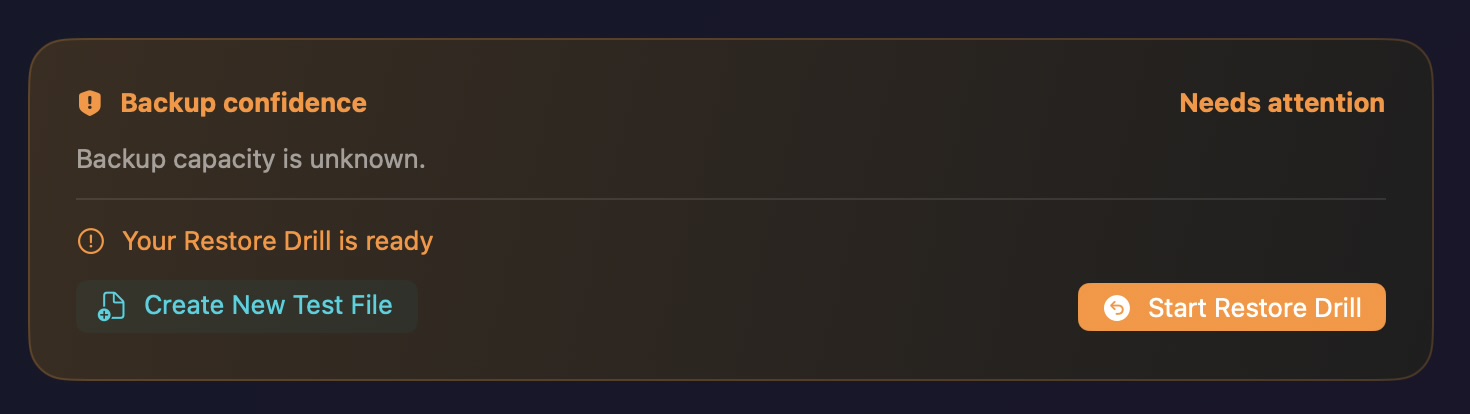
Build confidence with a Restore Drill
A backup becomes more reassuring when you have tested recovery. ProtectMyMac creates a harmless ProtectMyMac Restore Test.txt marker in Documents. After it observes a successful backup made after that marker was created, it schedules a Restore Drill for one month later.
Starting a drill asks for confirmation before permanently removing only the dedicated marker. You then restore it to Documents using Time Machine, and ProtectMyMac checks that the expected marker has returned. You can also create a new test marker from the Backup confidence card.
The confidence card combines backup freshness, available capacity, and recorded Restore Drill results. A successful backup observed after marker creation is the readiness signal; Time Machine does not provide a supported way for ProtectMyMac to confirm in advance that a specific file is present in a backup.
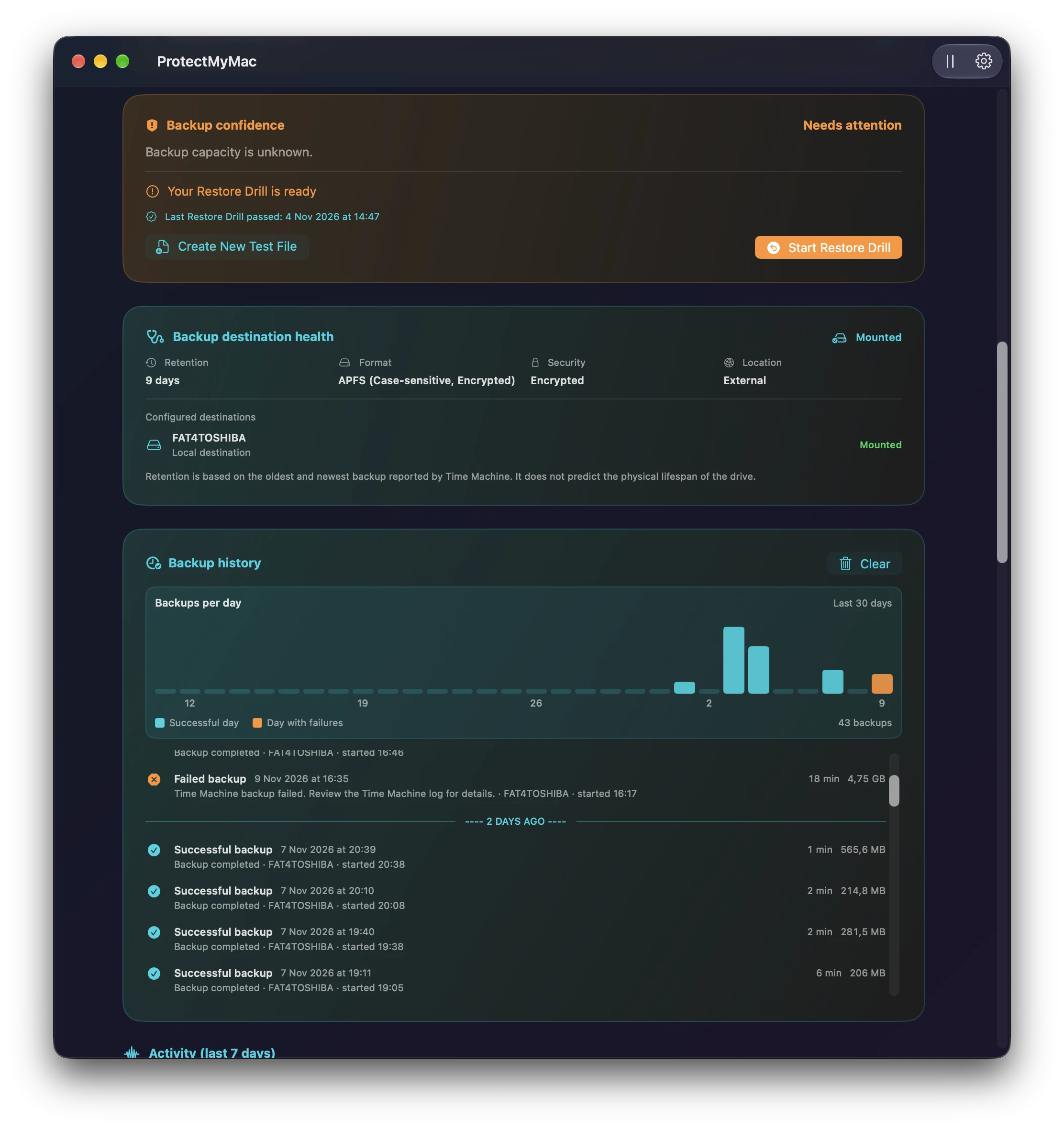
See backup health at a glance
A health score from 0 to 100 summarises backup freshness, Restore Drills, destination capacity, and security warnings. The menu bar shows the score and its main reasons: Good at 85 or above, Needs attention from 60 to 84, and At risk below 60. Optional weekly notifications repeat the score and the items worth reviewing.
Destination health shows available information about backup retention, format, security, and location. Retention describes the range of backups reported by Time Machine; it does not predict a drive’s physical lifespan. Network destination capacity may remain unavailable until macOS mounts the volume.
Understand your Mac’s security settings
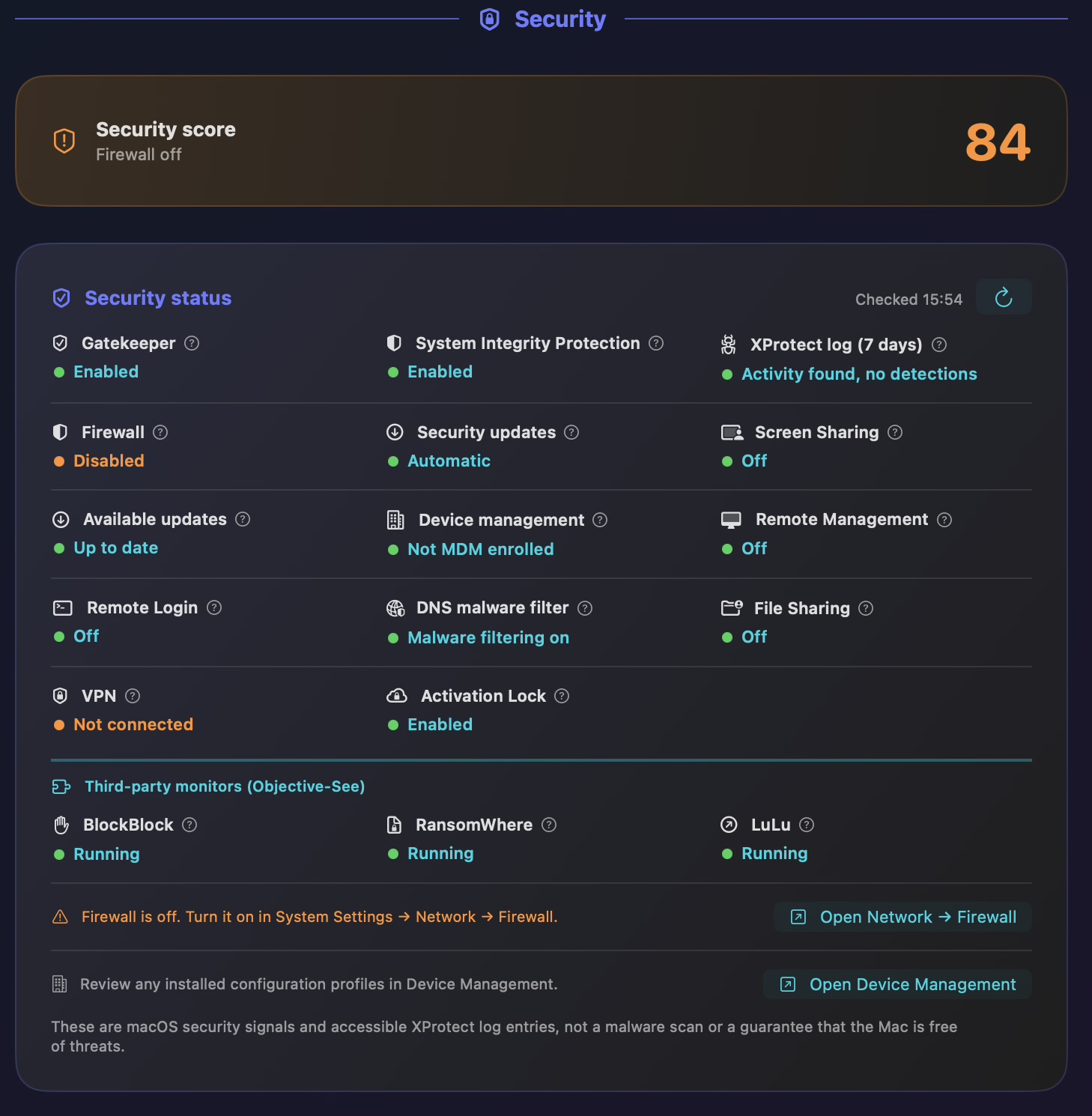
ProtectMyMac gathers the security signals macOS makes available, including Gatekeeper, System Integrity Protection, accessible XProtect activity, the built-in firewall and available Stealth Mode status, automatic security updates, cached available updates, device management, and remote-access and sharing services.
Clear status indicators and explanations help you decide what to review. Settings shortcuts take you to the relevant macOS controls, and ProtectMyMac checks security status again 30 seconds after you open a shortcut. A separate security score summarises the available signals from 0 to 100.
The dashboard also checks for Cloudflare’s malware-filtering DNS resolvers and whether Objective-See’s BlockBlock, RansomWhere, and LuLu are installed and running. ProtectMyMac links to these independent tools so you can install and configure them separately. The dashboard also shows whether macOS reports a VPN as connected or connecting. A connected VPN can supply its own DNS resolver, so the DNS check becomes informational. VPN status does not affect either score.
Firewall rule review highlights explicit app exceptions for non-Apple software and general-purpose interpreters such as Python and Ruby, even when Apple signed them. Review the exceptions in context. ProtectMyMac leaves firewall rules in place.
These are configuration signals and accessible log entries, not a malware scan or a guarantee that your Mac is free of threats. Work or school device management and intentionally enabled sharing services may be expected. An XProtect entry is a reason to investigate, rather than proof of an infection.
Apps, processes, and network activity
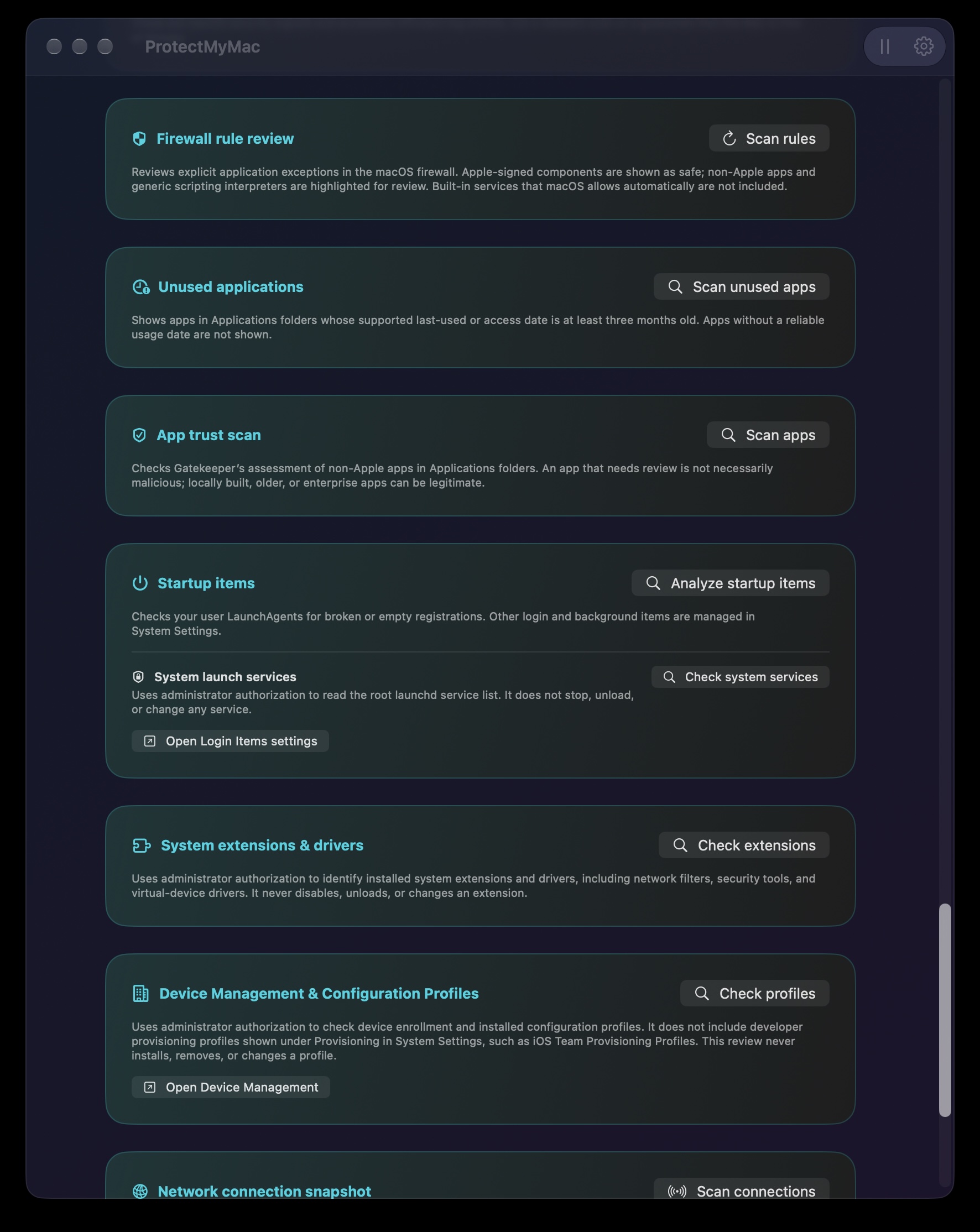
- Running process review: See where Dock, menu bar, and background apps running under your account were launched from and whether macOS can verify their signatures. The review highlights apps running from Downloads or temporary folders and apps with unverifiable signatures.
- App trust scan: Check installed apps against Gatekeeper and review non-Apple apps that Gatekeeper rejects or cannot verify. Locally built and older apps can appear here too. Reveal an app in Finder or move its bundle to Trash after confirmation.
- Network connection snapshot: review TCP connections macOS allows the app to inspect. The snapshot is read-only, may omit system-owned listeners, and does not block or close connections.
- Startup items: check user LaunchAgents for broken, empty, or unreadable registrations. After confirmation, an identified item can be unloaded and its plist moved to Trash. Other login and background items remain managed in System Settings.
- Firewall rule review: See explicit application exceptions in the macOS firewall. ProtectMyMac highlights non-Apple apps and scripting interpreters for review.
- Unused applications: Find apps with a reported last-used or access date at least three months old. Select Move to Trash to remove an app with one click, then confirm.
- System launch services: With administrator authorisation, read the list of system launch services alongside the existing Startup items review.
- System extensions and drivers: With administrator authorisation, identify installed extensions and drivers, including network filters, security tools, and virtual device drivers.
- Device Management and Configuration Profiles: With administrator authorisation, check device enrolment and installed configuration profiles. You can then open Device Management in System Settings.
Keep storage in view
Compare your Mac’s used space with the mounted Time Machine destination, review folder and application sizes, and see reported storage changes. Unmount Backup Disk uses the destination reported by macOS and is disabled while a backup is running.
Unused application scanning lists apps with reliable usage dates at least three months old, ordered with the longest-unused first. After confirmation, closed eligible apps can be moved to Trash individually or together; running apps are skipped. Separate documents, settings, and Application Support data remain in place.
A clearer picture of your Mac
ProtectMyMac brings the details that matter into one place, with explanations and practical next steps. Time Machine performs the backups; ProtectMyMac observes their status, can request backups, and helps you review backup confidence. Periodically restore test files to confirm that recovery works for you.